
Sound Effects Library and Music found HERE.
Browse the tabs below for sound tutorials . . .
- Audio Planning Guide
- MixPre 6 Basics
- MixPre Noise Assist
- QU-16 Digital Mixer
- Sync’ing Audio to Picture
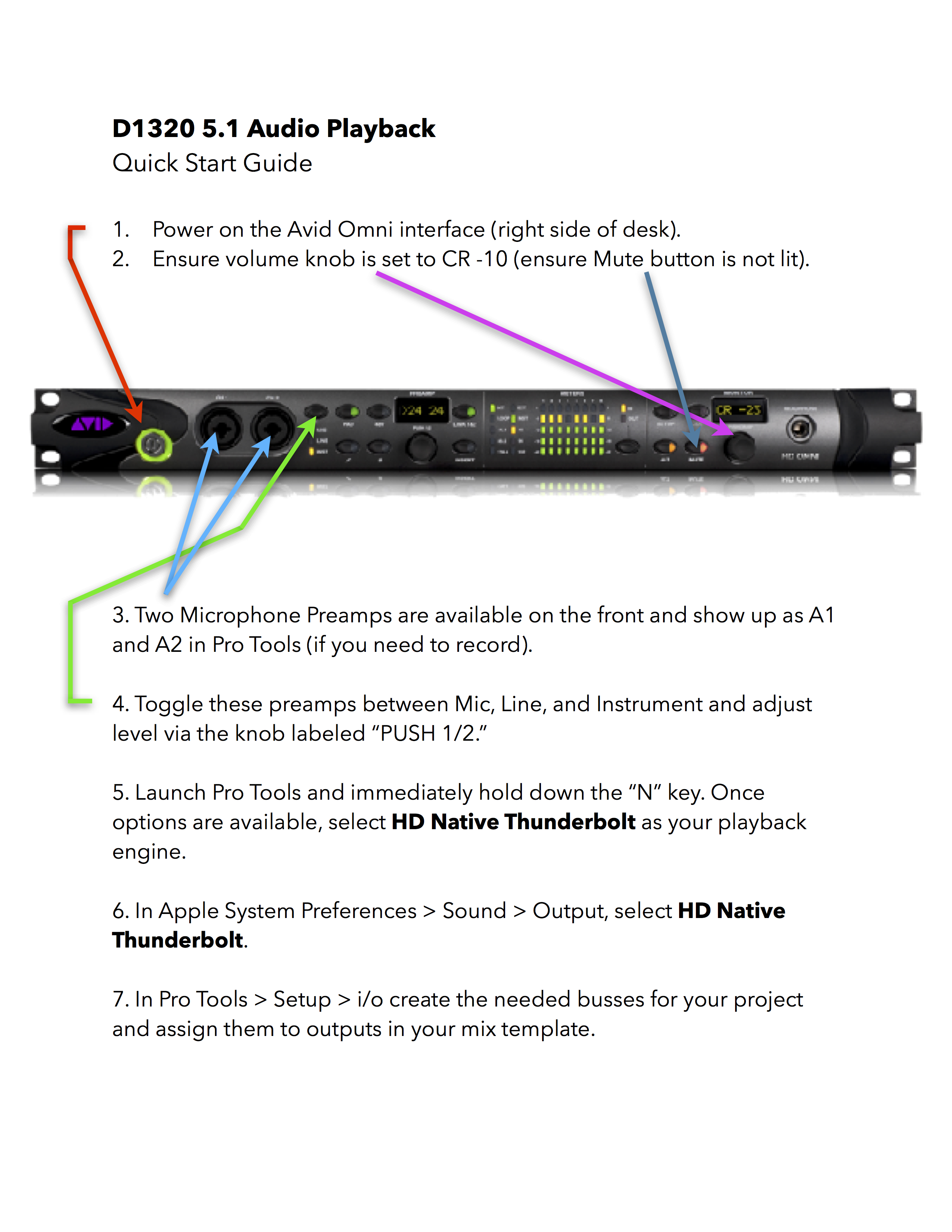
- Avid Omni setup (Recording Studio & Edit Suite 7)
- Edit Suite 7 Audio Playback Guide
- Post-Production Sound Tutorials
- Sounds of Mics
- Roland R-26
- Film Mics Workshop
- Wireless Lav. Mics
- Tascam DR-60D
- DCP Audio
- Copying Project Files
- Foley Recording
- How loud should I mix?
- Audio Export Standards 2022
- Mixer & Talkback Setup
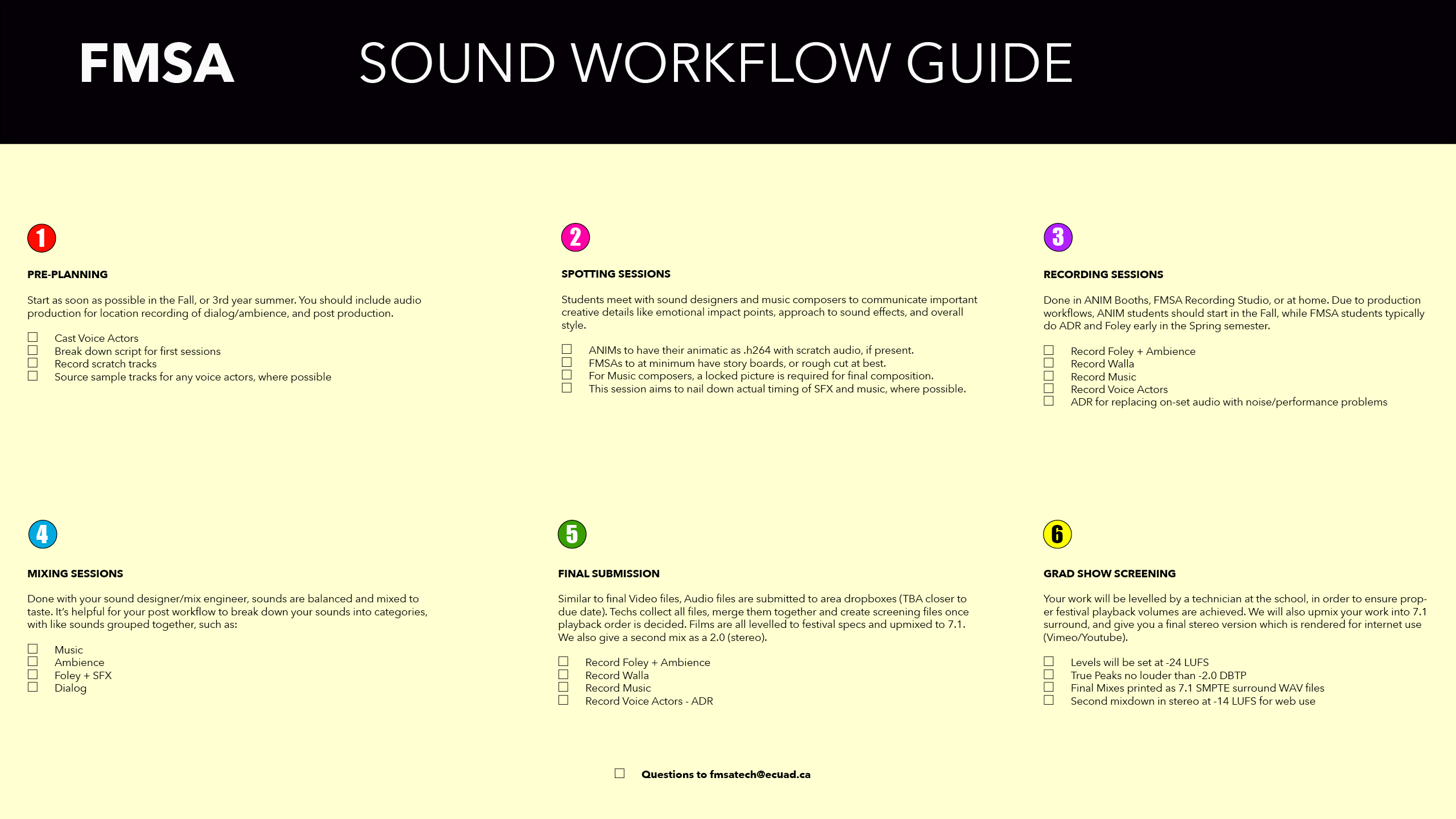
Sync’ing Sound To Picture

Useful Lynda.com tutorials on post-production film sound
login via https://myec.ecuad.ca
Course: Pro Tools 12 Essential Training: 101 – 4hr 30min
https://www.lynda.com/Pro-Tools-tutorials/Pro-Tools-12-Essential-Training-101/533108-2.html?org=ecuad.ca
Course: Adobe Audition: Mixing a short film – 1hr
https://www.lynda.com/Audition-tutorials/Mixing-Short-Film-Audition/111779-2.html
Course: Pro Tools: Audio for Film and Video – 5hrs
https://www.lynda.com/Pro-Tools-9-training/Audio-for-Film-and-Video-with/77862-2.html?org=ecuad.ca
Tutorial: Learning iZotope RX 6 (De-noise and restoration for audio noise issues)
https://www.lynda.com/RX-tutorials/Learning-iZotope-RX-6/585215-2.html
Tutorial: Working with Foley – 1hr 20min
with Pro Tools: Mixing a Short Film
https://www.lynda.com/Media-Composer-tutorials/Working-Foley/111780/121764-4.html
PDF notes ECUAD’s Microphone collection and basic specs
What do Different Microphones Sound Like?
Ever wondered what the difference is in sound from mic to mic, but you don’t want to get bogged down with technical drawings, specs, and theory? Then grab a pair of headphones and check out this video to listen and compare for yourself . . .
Roland R26 recorder workshop– Check out this simple, touchscreen recorder; records up to 6 channels and sounds great! Just pause to actually read the slides…
Restricted Mics Workshop
Media Resources has a number of microphones which are restricted for use in FMSA courses. This workshop covers the basics of microphones, selection, polar patterns, etc.

Tascam DR-60D Audio Recorder
LCR for DCP
The new format for cinema playback is DCP and requires a specific audio format outlined in this LCR Mixing Tutorial
Moving Pro Tools Session Between Computers
If you’re working on Pro Tools at the school, chances are you don’t have enough time in any one edit room to complete the project.
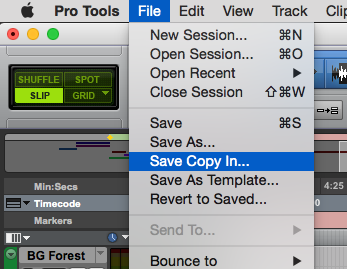
Likely, and hopefully, you’re carrying around an external hard drive which will serve as a backup, and the new location of your session folder. If you don’t follow the procedure for copying the session, Pro Tools will get confused at the new computer and be unable to find some or all of your files. For example, if you just try copying the files manually (dragging your old session folder onto your external drive), the allocation of your files will get corrupted and things won’t work properly. The solution is simple: in Pro Tools, go to the File menu and select “Save Copy In . . .”
You’ll see the following window:
 Ensure that you’ve checked the appropriate tick boxes in this window. Under Items To Copy, select “Audio Files” and “Movie/Video Files.” Click “OK” and Pro Tools will create a new session folder containing everything in your session and save it to your external hard drive. Now use this newly created session on a different computer.”
This is the best video I’ve found on the subject of performing and recording Foley for building up a soundtrack. It’s neat that we’re using the very same mixer as they are!
Foley Workshop
Background – What is Foley?
- Named after Jack Donovan Foley
- Act of recording sounds to simulate live-action for radio and film
- 1920’s radio play broadcasts were enhanced by his self-made SFX
- Adapted for film and still used today
Types of Foley
- Footsteps
- Movement/body/clothing
- Props (doors, costume FX [like armour], weapons, etc.)
Step by Step Setup
1. Watching the final cut, and/or reading your script, write down all needed sound effects, thinking about the 3 main types of Foley. Note character names for specifics like footsteps and certain clothing they might be wearing.
2. From that list of sounds needed, source materials to create sounds from. Ex: Crackling bacon can be simulated with cellophane wrappers. Collect appropriate shoes for your characters’ footsteps (heels, leather, sneakers, etc.).
3. Connect microphones in the Live Room, activating those channels on the mixer in the Control Room (see Recording Studio Pro Tools Setup tutorial to get started).
4. Import your film into Pro Tools – See “Recording Studio Pro Tools Setup” on the http://fmsasupport.ecuad.ca/tutorials/sound/ page.
-
- File > Import > Video
- Place at Session Start
- Ensure proper frame rate sync – Setup > Session
5. Create tracks to record sounds onto
-
- – Choose Track > Create New Track (build several, as needed)
- – Label tracks appropriately (Ex: Foot_Janet)
6. Create 3 beeps for timing (or import from some source).
7. Either create pre-clips or region groups or highlight the to-be-recorded section and use Loop Record to iterate through multiple takes. Choose Options > Loop Record.
8. Ensure “Automatically Create New Playlist When Loop Recording” is enabled.
-
- – Choose Setup > Preferences
- – Click the Operation Tab
- – Tick the box next to “Automatically Create New Playlist”
This selection will allow Pro Tools to create a new clip for every “take” or loop you iterate through, saving each as a separate clip. You can combine/edit clips later to make a perfectly-suited-to-picture sound.
9. Record-Enable a track
– Click the enable button for the track onto which you want to record. Look for the circle-within-a-square icon.
10. Line up your 3 beeps to give the Foley artist a cue, placing the beeps clip exactly 4 seconds before the point at which you want to start the recording.
11. Make a selection in the timeline (including the beeps clip), then Press Record and Play to start rolling the recording. Once you’ve done enough loops or “takes,” press Stop.
12. Move on to the next track or sound effect, repeating the steps above. Remember to disable or un-arm the last track, and Record-Enable the next track to be recorded!
13. Once you’re done recording, edit your sounds by expanding the tracks’ views to Playlist view. In the Edit window, Click on Waveform, and select Playlist to show each loop as a rainbow of clips. You can combine clips as needed by making selections and clicking the up arrow (Promote) button, or simply select your favourite from the list.
14. Mix those Foley sounds in with your dialog, background ambience and music to put your soundtrack together. Balance the levels of each track to ensure dialog sits on the top of the mix, with SFX, Foley, Ambience and Music as supporting elements.
How loud should I mix?
The thread in the link below is a good read. It explains how complex sound mixing is when we start asking the question of how loud we should be mixing; or how quiet. It may raise more questions than answers, but is very informative and illustrates the minefield that is audio post-production. The two sections below show how to look at audio levels graphically. The first method uses a radar type display and shows level over time. This is a hidden gem within Adobe’s Audition. Click below for more info . . .
How to Read Audio Meters
Look in Adobe AuditionsEffects Rack under Special for the Loudness Radar Meter or Adobe Premiere’s Audio Track Mixer (FX Inserts) and under Special for the Loudness Radar Meter. The TC Electronic Loudness Radar meter is very helpful for achieving proper levels for your final sound mix. This style of meter shows a history of audio levels over the length of your program material and at a glance, one can easily see where in time the problems occurred. It’s a bit like an aircraft radar unit in that it displays time in a circle, volume as a radiant — loudest sounds appearing at the outermost edge of the circle. Anything that crosses the second circle from the outside will be crossing your determined threshold. For example, in the pic below, you can see I’ve selected -23 LKFS as my desired target for my finished mix. That means I want my average level to be sitting on that second circle. It can go above and below that, as long as the max True Peak is < -2 dBfs. 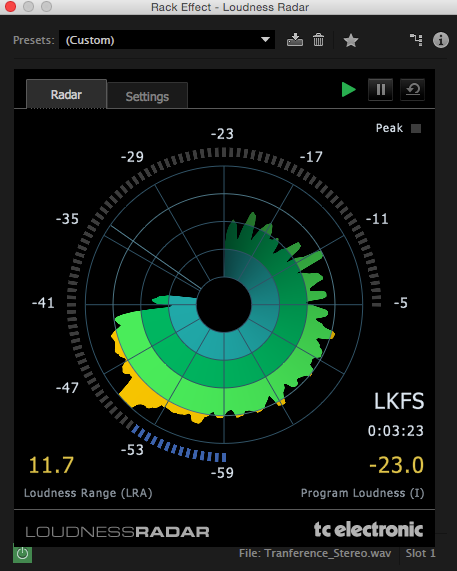
In this image, you can see the waveform of the same audio we looked at in the Radar view above, just expressed horizontally (the way most DAWs display it). This displays the peak audio level at any given moment, but does not display True Peak or Loudness Range. It is best used for editing purposes.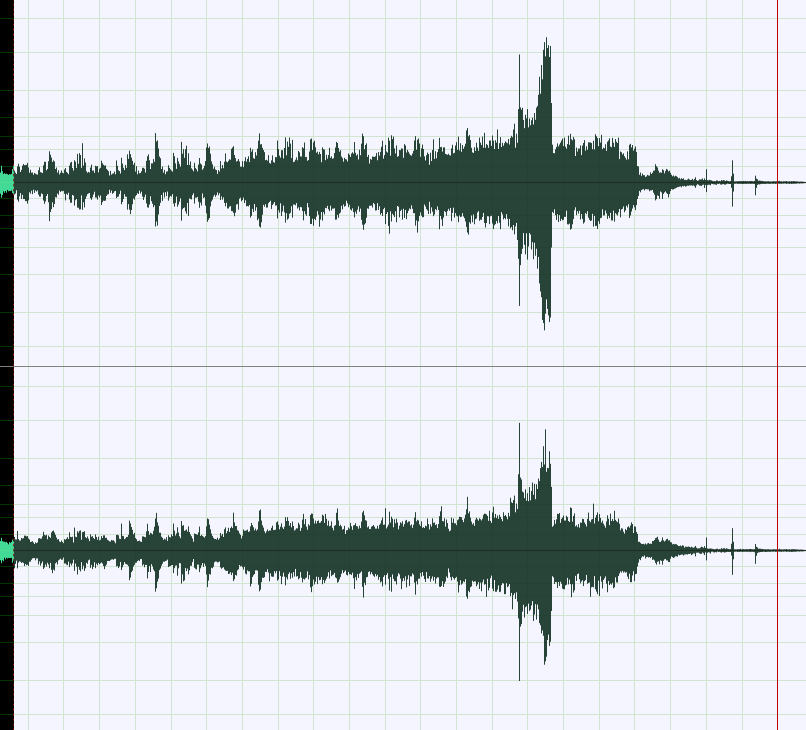
An ironic digital cloud hovers over the feature film audio industry. Many producers, directors, and studio executives are demanding that engineers mix movie sound tracks louder than ever before, even as theater owners are turning the volume down. Read the article here.
Please find below, this year’s deliverables for audio files.
*** Please note that your submission will be not be processed if your files do not conform to the specifications outlined below. *** If you need help with your export, contact a technician.
- Audio exports should always be 48 kHz, 24 bit uncompressed poly WAV files.
- A single poly WAV file containing all channels for the project – NOT a collection of mono files. We will not be able to individually align and assign mono files to your video. If in surround, please send only the single poly WAV file.
- Audio levels must be mixed to the following guidelines:
- -24 LKFS (Program Loudness of Mix)
- Peaks (loudest sound) no higher than -2 dBTP
- Dialog normal (average talking) levels around -27 LKFS
- Dialog peaks (shouting) no higher than -10 dBFS
- QuickTime files must contain:
- 48 kHz, 24 bit uncompressed audio
- Stereo, LCR or up to 7.1 channels (according to your final mix)
- Students submitting DPX image sequences must also include either:
- A single stereo 48 kHz, 24 bit uncompressed .wav
- A single poly WAV file containing all channels for the project – NOT a collection of mono files. We will not be able to individually align and assign mono files to your video. If in surround, please send only the single poly WAV file.